Create an account and sign in
This page takes you from registration to your first sign-in, in the order in which you go through the steps. An account is free. Every sign-in is confirmed with a second factor. That is mandatory and protects your documents even if someone knows your password.
Create an account
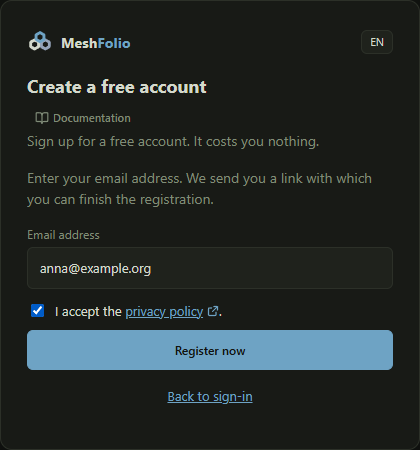
Here you create an account. All you need is an email address; it costs you nothing.
How it works
- Enter your Email address.
- Read the privacy policy, which opens in a new tab, and tick the box next to it.
- Click Register now.
Effects
| Entry or choice | Affects | Result |
|---|---|---|
| Register now | Mailbox | MeshFolio sends a confirmation link to your address. The account is created only when you have finished the setup. |
| Privacy policy | Registration | Without your consent the account cannot be created. |
Check your mailbox
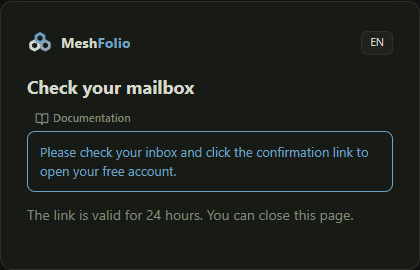
After registering, MeshFolio asks you to check your mailbox.
How it works
- Open your mailbox and the email from MeshFolio.
- Click the confirmation link.
Complete your details
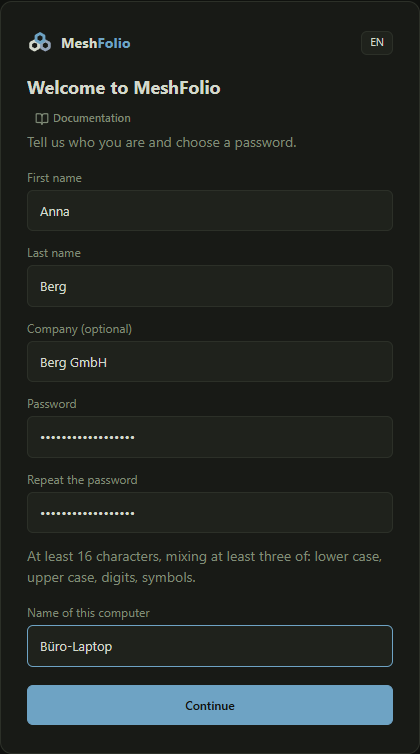
After you click the link, you give your name, choose a password and name your computer.
How it works
- Enter your First name and Last name. You can give a Company (optional), but you do not have to.
- Choose a Password and repeat it. It needs at least 16 characters of at least three kinds: lowercase, uppercase, digits, special characters.
- Enter a Name of this computer, for example Office laptop.
- Click Continue.
Effects
| Entry or choice | Affects | Result |
|---|---|---|
| Password | Sign-in | You need it for every sign-in, together with the second factor. |
| First name, Last name | Team | Your team sees you under this name. |
| Name of this computer | Devices | MeshFolio remembers this computer as your device. The name helps you recognise your devices later. |
Choose a second factor
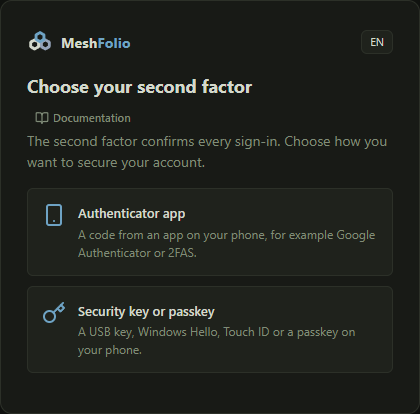
The second factor confirms every sign-in. You choose what protects your account.
How it works
- Choose Authenticator app if you use an app for one-time codes on your phone, for example Google Authenticator or 2FAS.
- Choose Security key or passkey if you use a USB key, Windows Hello, Touch ID or a passkey of your phone.
- Choose another second factor brings you back to this choice later.
Effects
| Entry or choice | Affects | Result |
|---|---|---|
| Authenticator app | Sign-in | At every sign-in you enter a six-digit code from the app. |
| Security key or passkey | Sign-in | At every sign-in you touch your key or confirm on the device. |
Set up 2FA and create the account
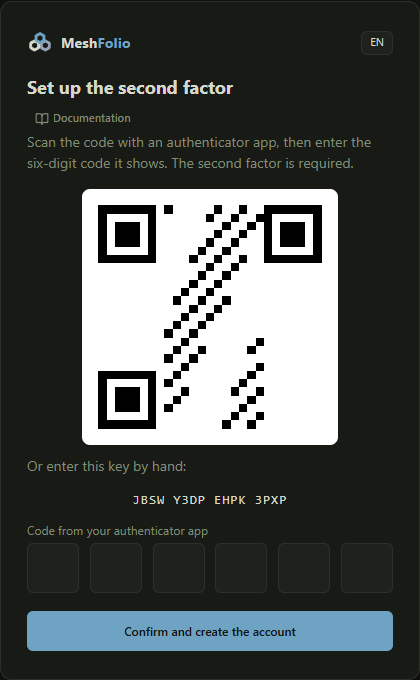
Here you connect your authenticator app to the account. The account is created as soon as you have confirmed the first code.
How it works
- Open your authenticator app and add a new entry.
- Scan the setup code. If that does not work, enter the key below it by hand.
- Enter the six-digit Code from your authenticator app that it now shows. You can paste a copied code into the first field.
- Click Confirm and create the account.
Effects
| Entry or choice | Affects | Result |
|---|---|---|
| Confirm and create the account | Account | The account is created. MeshFolio then shows you your recovery codes for emergencies. |
Sign in
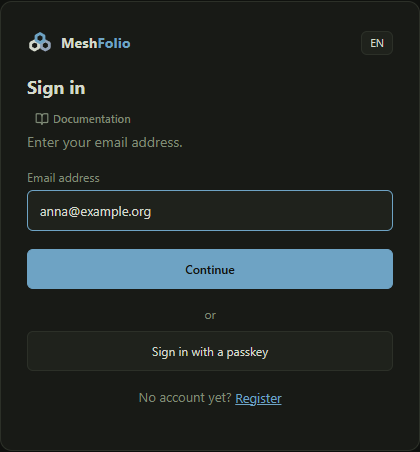
With the account, this is where you sign in from now on. The sign-in starts with your email address.
How it works
- Open MeshFolio. Without a sign-in this page appears.
- Enter your Email address and click Continue.
- Enter your Password and click Sign in.
- Confirm with your second factor, for example the code of your authenticator app.
Instead of the address you can also choose Sign in with a passkey or Sign in with GitHub, if you have set that up.
Effects
| Entry or choice | Affects | Result |
|---|---|---|
| Email address | Sign-in | Decides which account signs in. |
| Sign in with a passkey | Sign-in | Your device confirms you through your passkey, without an email address and without a password. |
| Sign in with GitHub | Sign-in | You sign in through your linked GitHub account. |
| Forgot your password? | Password | You receive an email with a link to choose a new password. |
| Register | Account | Opens the registration, see Create an account. |