Signing in and setting up your account
This page takes you from registration to your first sign-in. An account is free. Every sign-in is confirmed with a second factor; that is mandatory and protects your documents even if someone knows your password.
Sign in
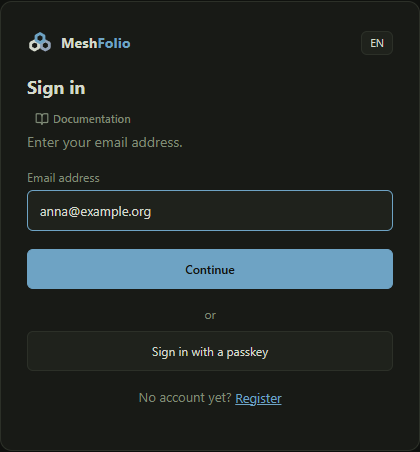
Every sign-in starts on this page: you enter your email address.
How it works
- Open MeshFolio. Without a sign-in this page appears.
- Enter your email address and choose “Continue”.
- Enter your password and choose “Sign in”.
- Confirm with your second factor, for example the code of your authenticator app.
Instead of the address you can also choose “Sign in with a passkey” or “Sign in with GitHub”, if you have set that up.
What it changes
| Entry or choice | Affects | Result |
|---|---|---|
| Email address | Sign-in | Decides which account signs in. |
| “Sign in with a passkey” | Sign-in | Your device confirms you through your passkey, without an email address and without a password. |
| “Sign in with GitHub” | Sign-in | You sign in through your linked GitHub account. |
| “Forgot your password?” | Password | You receive an email with a link to choose a new password. |
| “Register” | Account | Opens the registration (see Create a free account). |
Create a free account
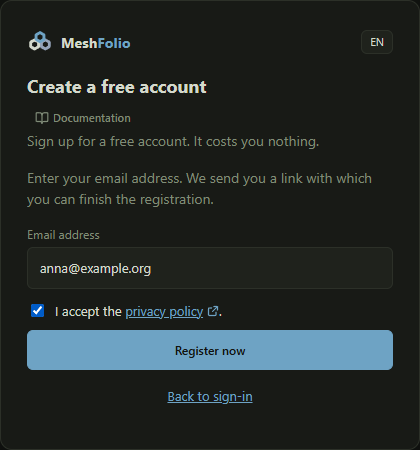
Here you create an account. All you need is an email address; it costs you nothing.
How it works
- Enter your email address.
- Read the privacy policy and tick “I accept the privacy policy”. It opens in a new tab.
- Choose “Register now”.
What it changes
| Entry or choice | Affects | Result |
|---|---|---|
| Register | Mailbox | MeshFolio sends a confirmation link to your address. The account is created only when you have finished the setup. |
| Privacy policy | Registration | Without your consent the account cannot be created. |
Check your mailbox
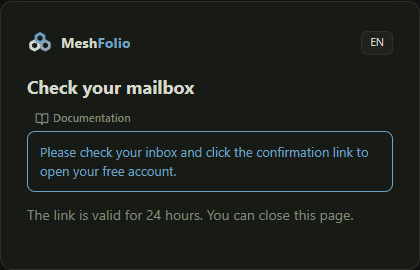
After registering, MeshFolio asks you to check your mailbox.
How it works
- Open your mailbox and the email from MeshFolio.
- Click the confirmation link.
Welcome: name and password
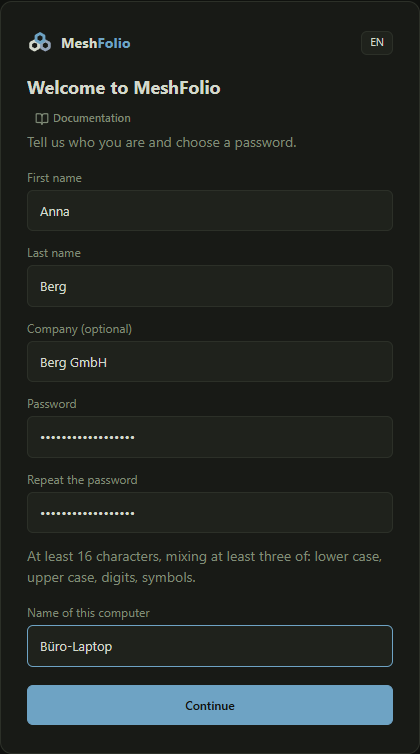
After you click the link, you give your name, choose a password and name your computer.
How it works
- Enter your first and last name. You can give a company, but you do not have to.
- Choose a password of at least 16 characters with at least three kinds of characters (lowercase, uppercase, digits, special characters) and repeat it.
- Enter a name for this computer, for example “Office laptop”.
- Choose “Continue”.
What it changes
| Entry or choice | Affects | Result |
|---|---|---|
| Password | Sign-in | You need it for every sign-in, together with the second factor. |
| First and last name | Team | Your team sees you under this name. |
| Name of this computer | Devices | MeshFolio remembers this computer as your device. The name helps you recognise your devices later. |
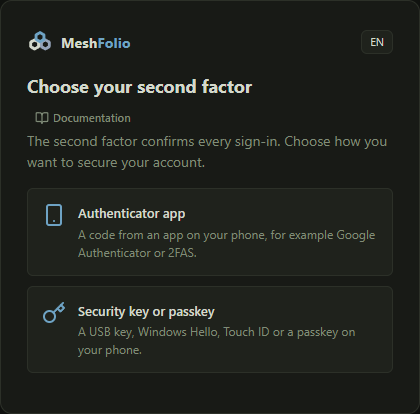
Choose a second factor
The second factor confirms every sign-in. You choose what protects your account.
How it works
- Choose “Authenticator app” if you use an app for one-time codes on your phone, for example Google Authenticator or 2FAS.
- Choose “Security key or passkey” if you use a USB key, Windows Hello, Touch ID or a passkey of your phone.
- “Choose another second factor” brings you back to this choice later.
What it changes
| Choice | Affects | Result |
|---|---|---|
| Authenticator app | Sign-in | At every sign-in you enter a six-digit code from the app. |
| Security key or passkey | Sign-in | At every sign-in you touch your key or confirm on the device. |
Set up the authenticator app
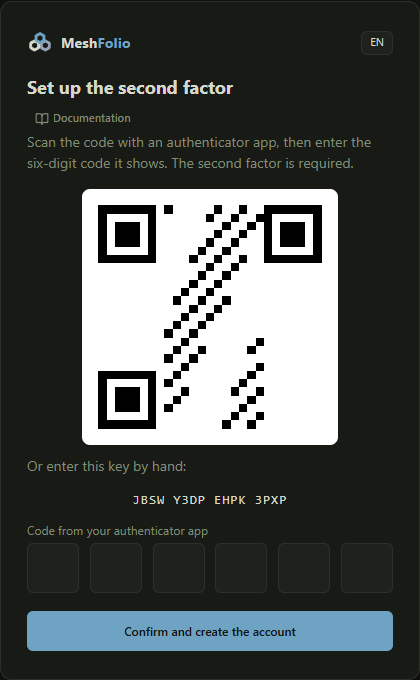
Here you connect your authenticator app to the account. The account is created as soon as you have confirmed the first code.
How it works
- Open your authenticator app and choose to add a new entry.
- Scan the setup code on the screen. If that does not work, enter the key below it by hand.
- Enter the six-digit code the app now shows. You can paste a copied code into the first field.
- Choose “Confirm and create the account”.
What it changes
| Entry or choice | Affects | Result |
|---|---|---|
| Confirmed code | Account | The account is created. MeshFolio then shows you your recovery codes for emergencies. |